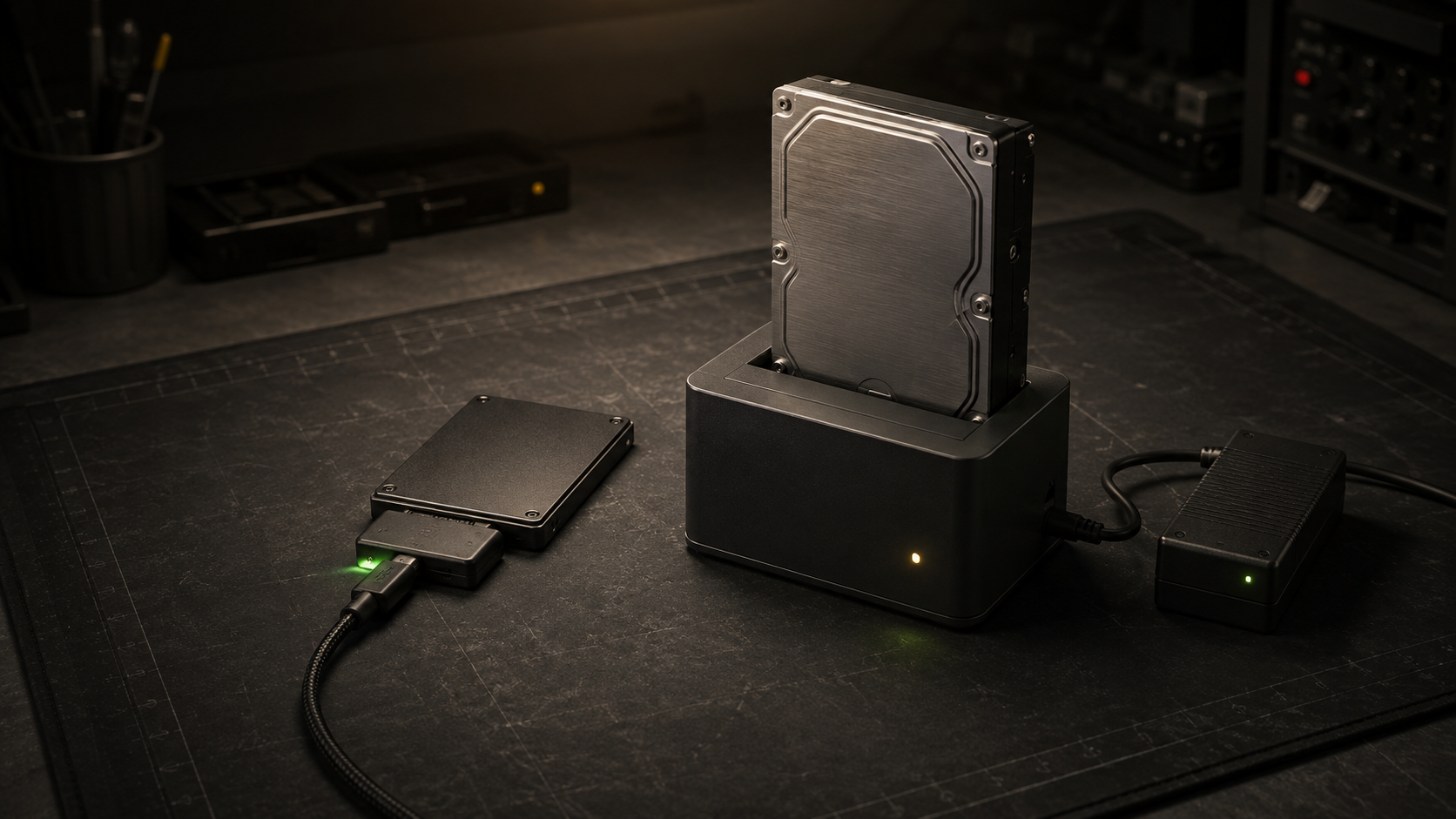
A bare SATA drive sometimes needs a temporary route back into a computer. The job might be copying data from a retired server, making an image before a storage change, or checking a spare disk. A USB-to-SATA adapter and a drive dock both create that route, but the shape of the device is less important than its drive support, power supply, bridge behavior, and handling.
Use an adapter for a compact connection to one compatible drive. Use a dock when the drive needs external power, a stable base, or repeated swaps. If the disk will stay connected, an enclosure or a proper internal bay is usually a better home than either open setup.
The decision starts with the drive and the task
Read the drive label and connector before shopping. This comparison is for 2.5-inch SATA and 3.5-inch SATA hard drives or solid-state drives. It does not cover M.2 SATA modules, NVMe devices, SAS drives, or older IDE drives. Those interfaces need different hardware even when a product photo looks close.
| Situation | Practical starting point | Main requirement |
|---|---|---|
| One 2.5-inch SATA SSD or laptop hard drive | Bus-powered adapter cable | Exact 2.5-inch support and enough USB power |
| One 3.5-inch SATA hard drive | Powered adapter or powered dock | External power with the required drive support |
| Frequent bare-drive swaps | Single-bay dock | Stable insertion, accessible power control, and documented hot-swap procedure |
| Two drives connected at once | Dual-bay dock | Independent drive access, sufficient power, and clear operating instructions |
| Long-term external use | Enclosure instead | Physical protection, cooling, and strain relief |
A temporary connection is not a backup plan by itself. If the drive contains the only important copy, decide where a second recoverable copy will live before changing partitions, filesystems, or encryption. The backup destination comparison separates a transfer tool from a maintained backup destination.
Choose an adapter for one small drive
A simple adapter cable is easy to store and has few parts. A representative StarTech USB3S2SAT3CB adapter is bus-powered, supports one 2.5-inch SATA HDD or SSD, and explicitly excludes 3.5-inch drives. That is the useful pattern: one small drive, one host, and no separate power brick.
Do not assume every adapter is limited to that job. StarTech also publishes a powered USB312SAT3 adapter that supports both 2.5-inch and 3.5-inch SATA drives. Its documentation says a 2.5-inch drive can use USB power while the included power adapter is used for a 3.5-inch drive or a small drive needing more power. The cable form factor therefore does not prove what the adapter can power.
An adapter works well for an occasional SSD migration, a labeled spare, or a quick read from a healthy laptop drive. The bare drive still needs a clear, nonconductive surface, and the short cable should not hang the SATA connector from the edge of a bench. For repeated swaps, the connector and drive are easier to manage in a dock.
Choose a dock for repeated swaps
A dock provides a base, a drive slot, and its own power controls. That can make the routine more predictable when several bare drives move through the same workstation. A representative StarTech dual-bay dock supports two 2.5-inch or 3.5-inch SATA drives, includes an external power adapter, and provides separate power buttons for its bays.
Those details are model-specific. One dock may expose both drives to the operating system at once. Another may include an offline clone button. Some models have one bay, and some have two. A clone function should not be treated as a safe default because destination selection, drive-size rules, and error handling differ. Read the exact manual before enabling any operation that writes to a disk.
A dock is not automatically faster than an adapter. It is also not a protected enclosure. The drive remains exposed to movement, static, dust, and accidental contact. Choose it for a controlled bench workflow, not merely because the base looks substantial.
Confirm SATA, power, and host compatibility
Check five layers: the drive interface, physical size, power source, host connector, and operating-system support. A 3.5-inch desktop hard drive is the clearest power test. A Seagate 3.5-inch SATA product manual documents both 5-volt and 12-volt power pins and lists spin-up current on the 12-volt rail. A small bus-powered adapter that has no dedicated supply cannot create that required 12-volt path.
Use the product’s explicit compatibility list. Do not infer SAS support from a SATA-shaped slot or M.2 support from the word SSD. Optical drives may use the SATA connector but also require ATAPI support, which some bridges exclude. The powered StarTech adapter cited here, for example, states that it is not compatible with optical drives.
USB-A and USB-C describe connector families, not a guaranteed storage speed. Confirm the host port, included cable, and adapter or dock data rate together. Avoid a chain of unverified converter plugs. Each additional connector adds another possible power, signal, or mechanical failure.
Treat the advertised interface rate as a ceiling
The USB Implementers Forum identifies USB 3.2 transfer rates of 5, 10, and 20 Gbps and says backward-compatible products operate at the lowest common speed capability. A storage bridge labeled USB 10Gbps can therefore fall back when the host port or cable supports less.
The drive, SATA link, USB bridge, host controller, cable, command protocol, filesystem, and workload all affect useful transfer performance. A 5Gbps or 10Gbps label does not promise a matching file-copy result. It also does not mean a hard drive becomes faster when moved from an adapter to a dock with the same bridge class.
Look for UASP when the host and operating system support it, but treat it as one compatibility field rather than a benchmark. StarTech documents UASP on both of the representative adapter products, while the exact host requirements remain part of the product specifications. No performance claim in this guide comes from LabGremlin testing.
Check command pass-through before maintenance work
Basic file access does not prove that every ATA maintenance command crosses the USB bridge. This matters when the job needs S.M.A.R.T. health data, TRIM, 4Kn sector support, secure erase, or another drive-specific command. The bridge firmware, operating system, and utility all take part.
Buy against an explicit feature statement. StarTech’s current USB312SAT3 datasheet documents S.M.A.R.T., TRIM, and 4Kn support for that exact adapter. Smartmontools separately maintains bridge-specific SAT support for several USB bridge families, which shows why a generic claim about all USB-to-SATA products would be unreliable.
If the drive is failing, clicking, disappearing, or reporting read errors, stop treating the task as a normal migration. Repeated mounts and writes can complicate recovery. Preserve the original, avoid initialization prompts, and choose a recovery procedure appropriate to the value of the data. A bridge that is convenient for healthy-drive access is not evidence that it is suitable for damaged-media recovery.
Use a deliberate connect and disconnect routine
Begin with the adapter or dock powered off when its manual calls for that sequence. Seat the SATA connection without forcing it. Connect external power where required, then connect the host. After the operating system identifies the device, verify the model, capacity, and intended source or destination before any write.
Label drives outside the computer and keep destructive tools closed until the identity check is complete. This is especially important during a server retirement, when several similar disks may be on the same bench. A USB bridge can change how a device is named, so do not rely on the last drive letter or device path.
Before removal, finish the transfer and use the operating system’s eject or unmount path. Microsoft documents that its Better performance removal policy uses write caching and requires Safely Remove Hardware so cached operations can finish. Apple likewise directs users to eject external storage in Finder and notes that an application or another user can prevent ejection. After the device disappears cleanly, wait for drive activity to stop, switch off external power, and then remove the drive according to the hardware manual.
Buy from a specification checklist
Write the required fields before opening a store: 2.5-inch SATA, 3.5-inch SATA, external power, one or two bays, host connector, USB data rate, UASP, capacity support, and any required S.M.A.R.T., TRIM, or 4Kn pass-through. Add cable length, individual bay power controls, cooling guidance, operating-system notes, firmware support, warranty, and return terms where they matter.
This article contains affiliate links. As an Amazon Associate, LabGremlin earns from qualifying purchases.
If repeated access to both laptop-size and desktop-size bare drives is the actual task, this search for a powered USB SATA dock for 2.5-inch and 3.5-inch drives is a relevant place to compare form factors. It is not a product endorsement. Match every candidate against the checklist and its current manufacturer documentation before buying.
For one occasional 2.5-inch drive, a bus-powered adapter is usually the simpler fit. For a 3.5-inch drive, select a powered adapter or dock. For frequent swaps, the dock’s stable slot and power control may justify the extra bench space. If the drive becomes permanent storage, move to an enclosure, internal bay, or maintained storage system. The Proxmox storage planning guide explains why a temporary USB connection should not quietly become an undocumented production dependency.
Sources
- StarTech USB3S2SAT3CB SATA-to-USB Adapter Specifications
- StarTech USB312SAT3 Powered SATA-to-USB Adapter Datasheet
- StarTech SDOCK2U33 Dual-Bay Drive Dock Specifications
- USB-IF USB 3.2 Specification Overview
- Seagate Video 3.5 HDD SATA Product Manual
- Microsoft Manage Default Media Removal Policy
- Apple Connect and Use Other Storage Devices with Mac
- Smartmontools SAT Namespace and USB Bridge Support
Primary sources and the product-search destination were reviewed September 7, 2026. This is a documentation-based comparison. It does not claim that LabGremlin used, tested, benchmarked, or recovered data with any adapter, dock, bridge, or drive.