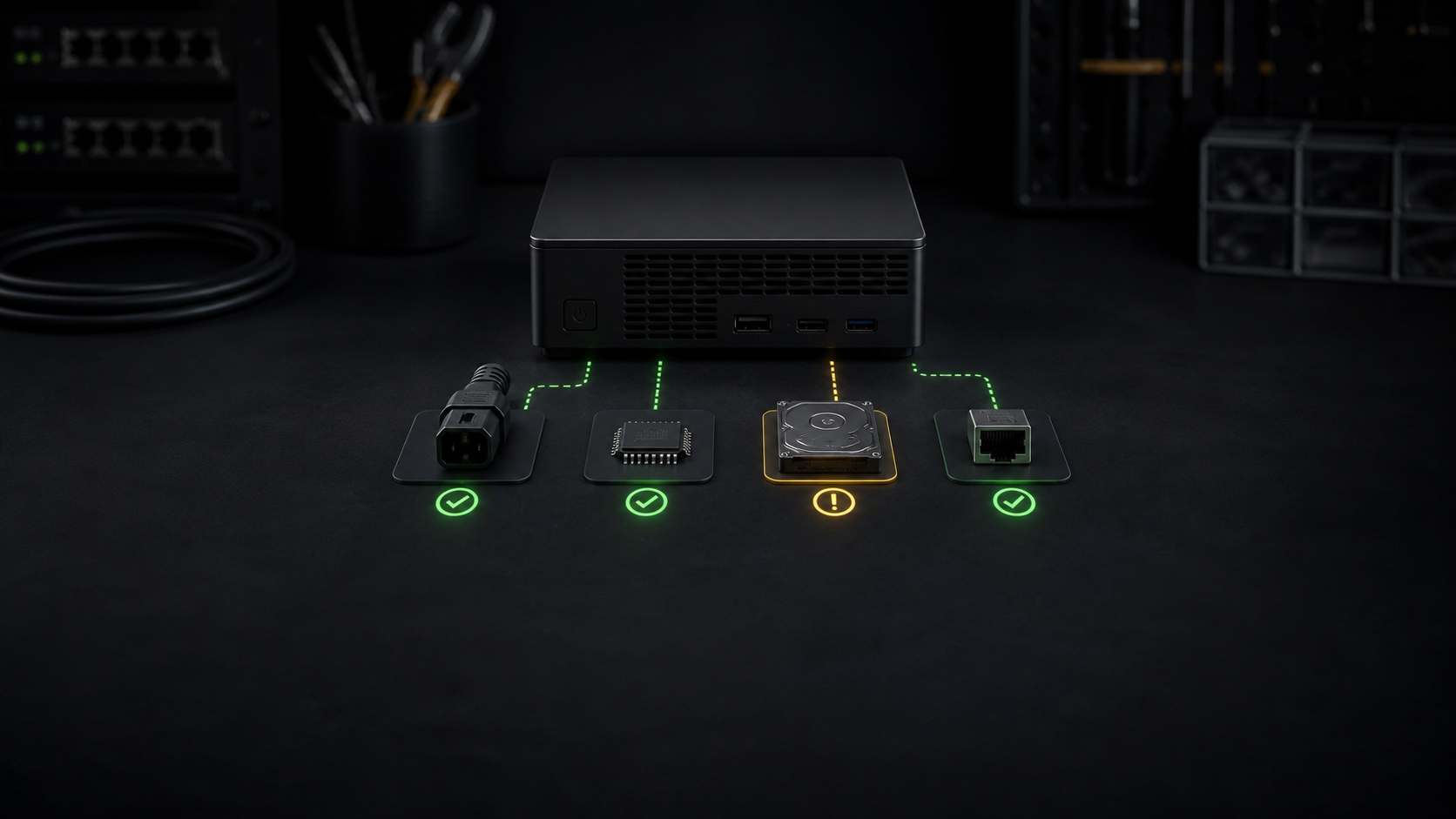
A server that stays offline after the power returns has not yet told you whether it has a power problem, a boot problem, or only a network problem. Treat the first visible symptom as a boundary. Record it, then move through the startup path one layer at a time. Random resets and repair commands can erase useful clues.
This decision tree is written for a home-lab server running Proxmox VE or another Debian-based system. It starts with observation and read-only checks. It does not assume that a power interruption caused disk damage, and it does not prescribe a filesystem or bootloader repair without evidence.
Capture what still works
Connect a local display and keyboard, or use a host-independent remote console if the server has one. Photograph the last visible screen. Note the time, indicator lights, fan behavior, beep pattern, and any exact error. Vendor-specific light and beep meanings belong in the manual for that exact system.
Put the failure in the first matching row:
| Last working layer | Visible symptom | Next check |
|---|---|---|
| None | No light, fan, or console output | Outlet, UPS, cable, external power supply, and chassis power controls |
| Power | Fans or lights appear, but no firmware screen | Display path, POST indication, memory, and vendor diagnostics |
| Firmware | Firmware opens, but no boot device is found | Detected drives, boot order, and boot mode |
| Bootloader | Boot menu appears, then the kernel or early userspace stops | Exact message, available kernel entries, and rescue access |
| Operating system | Login works locally, but Proxmox is unreachable | Address, bridge, storage, and Proxmox services |
Do not call a server unbootable because its web page does not load. A changed network address, an unavailable bridge, or a stopped API service can hide a running host. The console separates those cases quickly.
Trace power before touching storage
If the machine shows no sign of power, verify the simple external path first. Test the wall outlet with a known safe device. Check the UPS output state, its breaker, and the specific receptacle in use. Inspect the power cable and any external adapter. Confirm the chassis switch and the power-supply rocker switch are in their expected positions.
Disconnect nonessential USB devices and accessories while the server is off. A failed peripheral can complicate startup. Do not open a power supply. Stop immediately if there is heat damage, liquid, a burning smell, unusual arcing, or a swollen battery. Those conditions need equipment-specific service, not another power cycle.
If power returns, pause before starting guests. An outage may also have interrupted the network switch, storage appliance, or backup destination. Their recovery order matters. A server can boot correctly while its required storage is still absent.
Follow firmware to the boot disk
When firmware appears, open its storage and boot pages without changing settings. Record whether the expected system disk is detected. Also record the boot mode and first boot entry. Firmware resets can change UEFI versus legacy mode, Secure Boot state, storage-controller mode, or boot order. Restoring a remembered setting without documentation can create a second fault.
If the system disk is absent, shut the server down. Check only connections that are designed to be serviced and that you are qualified to handle. Repeatedly reseating or writing to an intermittently detected drive is not a recovery plan. If the disk reappears, preserve data and gather its health information before declaring it fixed.
The smartmontools project documents smartctl for ATA, SCSI, and NVMe health information. Device support and the meaning of individual attributes vary. A passing summary does not prove that every read is reliable. Record the full output and the device identity so later comparisons refer to the same disk.
Proxmox installations may use GRUB, or GRUB or systemd-boot managed through proxmox-boot-tool. The current Proxmox VE administration guide documents proxmox-boot-tool status as a way to inspect configured EFI System Partitions after the host can run commands. Do not format, initialize, or refresh an EFI partition merely because a forum example uses that command sequence.
Read the bootloader and operating system boundary
A visible boot menu proves that firmware reached a bootloader. Photograph the selected entry and the failure that follows. If an older installed kernel is already offered, trying it once can distinguish a new kernel path from a wider disk or configuration problem. Do not remove the newer kernel during this test.
If Debian reaches emergency mode or a local shell, begin with status and logs:
systemctl --failed
journalctl -b -p warning
journalctl -k -b
The -b filter selects the current boot. After a successful restart, journalctl -k -b -1 requests kernel messages from the preceding recorded boot. That earlier record exists only when the journal retained it, and an abrupt loss may leave the final event unwritten. Treat an empty ending as missing evidence, not proof of a clean shutdown.
Write down the first failed unit, missing device, or mount error. Do not run fsck against a mounted filesystem. Do not import a pool, activate volumes, reinstall a bootloader, or accept a destructive repair prompt until the storage layout and backup state are known.
Debian documents installer rescue mode as a way to detect hardware and open a shell for an installed root filesystem. Its reference manual also recommends having rescue media before performing boot-related administration. Rescue mode provides tools and access. It does not decide which repair is correct.
Verify a recovered node before guests
If the host reaches a local login but the Proxmox interface is absent, check the actual address and service state. Start with ip address, systemctl --failed, and systemctl status pveproxy. Then use pvesm status to see whether configured Proxmox storage is active. Keep guests stopped when required storage, bridges, or cluster services are missing.
Compare the result with the saved maintenance record. The Proxmox update checklist lists versions, kernels, storage, access, and guest state worth recording before routine changes. For recovery copies that remain usable when the host fails, see the backup destination comparison.
A recovered node should pass a small acceptance check before normal workloads return:
- The expected boot disk and boot entry remain visible after one controlled restart.
- The management address, network bridges, and Proxmox interface are reachable.
- Required local and remote storage reports active and has expected content.
- No new failed unit or repeating storage error appears in the current boot log.
- One low-risk guest can start and reach its expected network and storage.
Stop and seek experienced help when the boot disk disappears, a filesystem or pool reports damage, the machine cannot complete POST, or the repair would overwrite partition, bootloader, or volume metadata. Preserve the console photo, command output, hardware model, and configuration notes. A precise failure boundary makes the next action safer.
Sources and research date
- Proxmox VE Administration Guide
- Debian Reference, system initialization
- Debian Installation Guide, recovering a broken system
- Debian journalctl manual page
- smartmontools source documentation
Primary sources were reviewed August 17, 2026. This is a documentation-based troubleshooting guide. It does not claim that LabGremlin diagnosed, repaired, power-tested, or recovered any server.